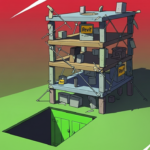


That moment of pure dread is universal. You’ve just perfected a complex, beautiful form in Rhino. Now you have to get it into Revit, and you already know what’s coming: a tangled mess of exploded geometry, failed imports, and hours of repair work.
Breathe. This doesn’t have to be a nightmare. Here are the five reliable workflows to move your designs from Rhino’s creative playground into Revit’s powerful documentation engine—without losing your mind.
1. Why This Feels Like a Battle (The Language Barrier)
At its core, this isn’t a software problem—it’s a language problem. Rhino and Revit speak completely different dialects.
- Rhino is like a brilliant, free-flowing artist. It speaks the language of NURBS (Non-Uniform Rational B-Splines). Think of this as the mathematics of perfect, smooth curves. Everything is defined by precise, flexible mathematics. Its primary building block is a Brep (Boundary Representation), which is just a clever way of saying “a shape defined by its surrounding surfaces and edges.”
- Revit is like a meticulous project manager. It speaks the language of parametric intelligence and BIM (Building Information Modeling). It doesn’t just care about what a wall looks like; it cares that it is a wall, that it’s made of concrete, that it’s 300mm thick, and that it knows what other elements it’s connected to. Its world is built on intelligent, categorized objects.
When you try to force a complex, free-form Rhino Brep into Revit, the project manager (Revit) panics. It doesn’t know what to do with this mathematical sculpture. So, it often does the worst possible thing: it turns it into a dumb, static blob—either a mesh (a shape made of thousands of tiny, flat triangles, losing all its smoothness) or a DirectShape (a generic object Revit doesn’t understand how to tag or schedule).
Your goal isn’t to make Revit a better artist. It’s to be a better translator.
2. Your Pre-Flight Checklist: Don’t Skip This!
You wouldn’t try to fly a plane without first checking the instruments. Never attempt an import without this 5-minute Rhino cleanup.
- A. Tame the Tolerances: This is the most important, least glamorous step. Tolerance is how precise Rhino is with its math. Revit is incredibly fussy and will reject sloppy, imprecise geometry. Go to File > Properties > Units in Rhino. Set your Model tolerance to something like 0.01 (if your unit is meters) or 1.0 (if it’s millimeters). This tells Rhino to clean up its math before takeoff.
- B. Run a Health Check: Type SelBadObjects into the Rhino command line. This will highlight any corrupted or invalid geometry—the kind that will guarantee an import failure. Delete and redraw anything it finds.
- C. Simplify, Simplify, Simplify: Huge, ultra-complex single surfaces are the enemy. Use the Split command to break them into smaller, more manageable patches. Revit digests many small bites better than one giant mouthful.
- D. Mind the Gap (and the Scale): The #1 import killer? Unit confusion. If your Rhino model is built in meters and your Revit project is set to millimeters, your beautiful building will import 1000x too small, looking like a speck on the screen. Always confirm and reconcile your units in both programs first.
3. The 5 Reliable Workflows: Your Translation Guide
Workflow 1: The Classic SAT Mass (The Old Reliable)
- What It Is: The tried-and-true method. You export your Rhino model as a .SAT file (a neutral, universal format for 3D geometry) and import it into a special container in Revit called a Mass Family.
- Plain English: You’re putting your Rhino sculpture into a special display case that Revit understands. Once it’s in the case, Revit can build real walls and roofs on top of it.
- How To Do It:
- In Rhino, select your final geometry. Type Export, and choose .SAT as the file type.
- In Revit, go to File > New > Family. Choose the Generic Model or Mass.rft template.
- Go to Insert > Import CAD and select your .SAT file.
- Save this new family file and load it into your main project.
- When to Use It: Best for bringing in an entire conceptual massing model or a complex building form.
- Pro Tip: In Rhino, ensure your model is a watertight solid (use the Solid command) and not just a bunch of surfaces. This prevents errors.
Workflow 2: The Native Bridge: Rhino.Inside.Revit (The Power Move)
- What It Is: A free, game-changing plugin that lets you open Rhino inside your Revit window. It’s the ultimate translator, enabling you to convert Rhino shapes into native Revit geometry instantly.
- Plain English: Instead of mailing a sculpture to the museum (exporting), you bring the museum curators (Revit) into your studio (Rhino) to create the display case together, in real-time.
- How To Do It:
- Install Rhino.Inside.Revit.
- A new tab will appear in Revit. Open the Grasshopper editor within Revit.
- Use the AddForm component to convert your Rhino Brep into a native Revit FreeForm element.
- When To Use It: This is your best bet for most organic shapes. It creates much smarter, more editable geometry in Revit than an imported SAT file.
- Pro Tip: Do this inside a Conceptual Mass family to keep your main project file clean and organized.
Workflow 3: The Family Factory: Conveyor (The Time Saver)
- What It Is: Conveyor is a powerful (paid) plugin that automatically converts Rhino blocks (groups of objects) into fully-fledged, schedulable Revit families.
- Plain English: You model a custom chair in Rhino. The conveyor packages all its information and sends it to Revit as a smart object, which identifies it as a floor, its material, and the cost per square meter. No manual setup required.
- How To Do It:
- Model your object in Rhino and group it into a Block.
- Use Conveyor’s interface to define its parameters (e.g., materials, dimensions).
- Run the tool. It generates a perfect .RFA (Revit Family) file.
- When To Use It: Indispensable for custom furniture, light fixtures, complex panels, or any unique, repeating element that needs to be scheduled.
- Pro Tip: This saves dozens of hours on projects with bespoke elements.
Workflow 4: The Sculptor’s Path: Sub-D to NURBS (For Organic Forms)
- What It Is: A specific technique for bringing Sub-D models (Rhino’s digital clay) into Revit.
- Plain English: You sculpt a form as if it’s digital clay. Then you “fire” it in a digital kiln (ToNURBS) to turn it into a hard, precise sculpture. Then you use another workflow to bring it into Revit.
- How To Do It:
- Sculpt your form using Rhino’s Sub-D tools.
- Use the ToNURBS command to convert it to a smooth, precise BREP.
- Now use Workflow 1 or 2 (SAT or Rhino.Inside) to import this cleaned-up model.
- When To Use It: For highly organic, sculptural forms like custom furniture, art installations, or complex canopy designs.
- Pro Tip: After converting to NURBS, use the Rebuild command to reduce the complexity of the surface, making it even easier for Revit to handle.
Workflow 5: The Collaborator: Speckle (The Team Player)
- What It Is: Speckle is an open-source data platform for AEC. It’s less about perfect geometry and more about sharing models and data between different software.
- Plain English: Think of it as a “Google Docs” for 3D models. It’s fantastic for sharing ideas and context quickly, but not for delivering final, perfect geometry.
- How To Use It:
- Send your Rhino model to a Speckle server.
- Pull that model into Revit. It will usually come in as a DirectShape.
- When To Use It: Best for sharing context buildings (e.g., a city model from Rhino into Revit) or for early-stage conceptual collaboration.
- Pro Tip: Manage expectations. Use Speckle for collaboration, not for creating document-ready geometry.
Your Workflow Cheat Sheet
| If you need to… | Then use this workflow… | Because it… |
| Bring in a whole massing model | The Classic SAT Import | Creates a simple, stable object for Revit to build on. |
| Develop a complex organic shape | Rhino.Inside.Revit. | Creates the smartest, most native, and editable geometry. |
| Creates the smartest, most native, and editable geometry. | Conveyor | Automates the tedious process of building intelligent families. |
| Import a sculpted (Sub-D) form | Rhino.Inside. Revit : Sub-D to NURBS | Converts “digital clay” into a precise model Revit can read. |
| Share conceptual models with a team. | Speckle | is built for fast, easy collaboration, not perfection. |
The goal isn’t to make these programs the same. It’s to build a seamless pipeline between raw creativity and buildable reality. By choosing the right workflow, you stop fighting your software and start making it work for you.
This strategic approach—being a smart translator between design and delivery—is a core skill we focus on at RevitRealm. It’s not about pushing more buttons; it’s about pushing the right buttons.
If you’re staring at a complex Rhino model and the dread is setting in, book a 60-minute Power Session on WhatsApp. We’ll diagnose your model, choose the perfect workflow from this list, and get you on the path to a stress-free Revit integration.
Share with your colleagues.
- AI Won’t Steal Your Job—But a Designer Using These Tools Will Have a Major Advantage
 AI won’t replace architects—but designers who master Grasshopper, Dynamo, Rhino.Inside, and generative AI will. Here’s how to gain the advantage before they do.
 - The ‘Good Enough’ Trap: How Mediocre Revit Skills Cost You FeesBasic Revit skills keep you stuck in commodity work. Learn how “good enough” habits cost architects fees, and how deeper parametric and site-responsive design wins clients.
- Adaptive Components Demystified: Revit’s Secret Weapon for Complex GeometryStruggling with complex forms in Revit? Adaptive components are the secret to intelligent panels, twisting canopies, and responsive façades. Here’s how they work.