
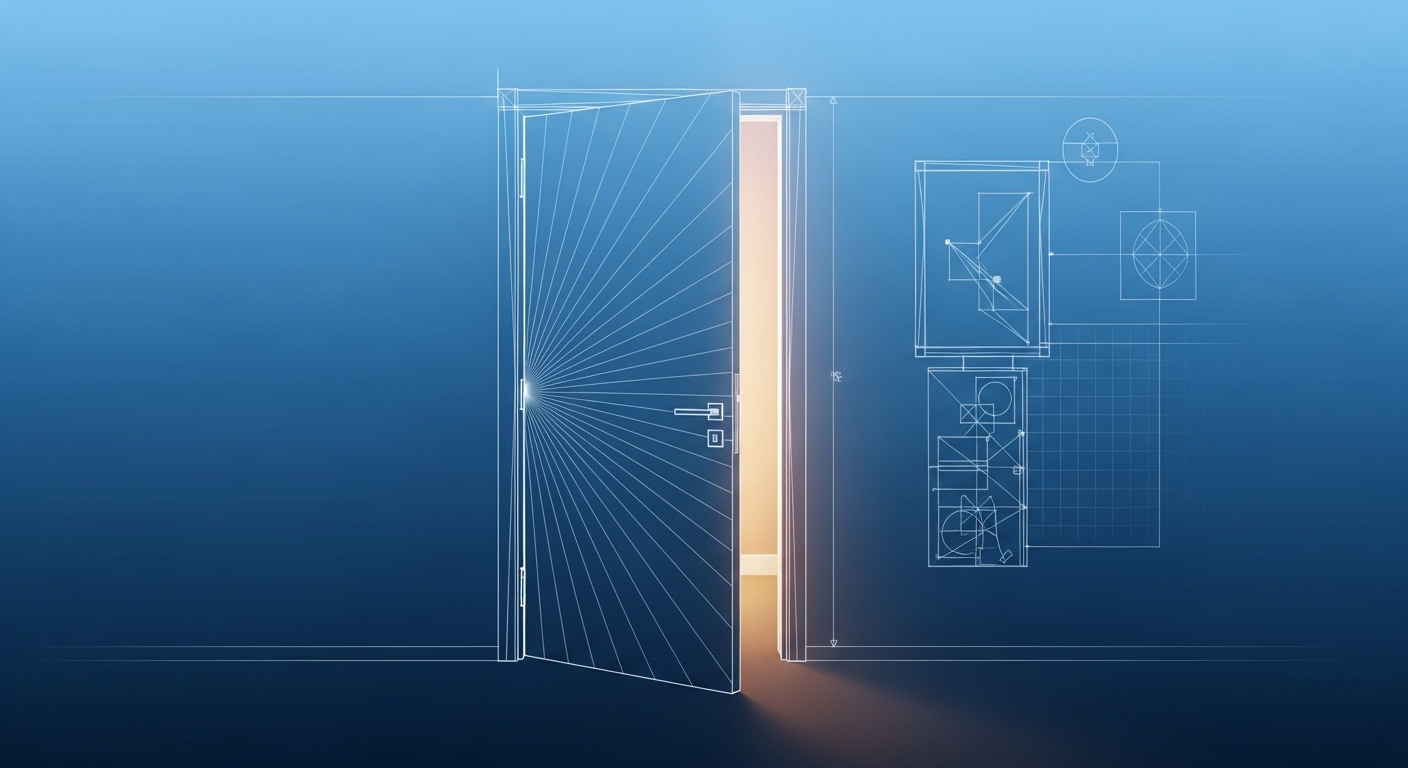
That door you just pulled from the library seems simple, but it’s hiding a powerful secret: built-in intelligence. Most users never learn how it works—until it breaks. This guide will demystify it. We’ll build a parametric door from the ground up, explaining the why behind every click. You’ll learn to create a door that swings, customizes, and cuts its own opening, turning you from a library user into a family creator.
What We’re Building: A Real Door System
Our Door will have three key features:
- A Functional Swing: A door panel that rotates based on an angle parameter.
- A Customizable Panel: The ability to swap the door leaf design (e.g., solid, glass, fluted).
- A Self-Creating Opening: The family will automatically cut a hole in the host wall.
Software Required: Revit Family Editor.
Step 1: Start with the Right Template
This is the most important step. Using the correct template gives our family innate door properties.
- Open Revit. Go to File > New > Family.
- Navigate to your templates folder and select Door.rft. Do not use a generic model template.
- Immediately save the family as My First Parametric Door.rfa.
You’ll see four red, dashed lines. These represent the wall centerlines. Our Door will be centered on these. The space between the inner pairs of lines is the default door width.
Step 2: Define the Door Opening
The “opening” is the hole the door cuts in the wall. We define this with symbolic lines.
- Ensure you are in the Ref. Level floor plan view.
- On the Annotate tab, click Symbolic Line. (Important: Use Symbolic Line, not Model Line. Symbolic lines are for 2D representation in plan views.
- In the line style selector on the ribbon, choose Opening.
- Draw a rectangle to represent the hole in the wall. Snap one side to the inner face of the left wall line and the other side to the inner face of the right wall line. Draw the top and bottom lines to complete the rectangle.
- Lock these lines: Use the Align tool to lock each symbolic line to its corresponding reference plane. You must see the padlock icon close. This ensures the opening size always matches the door size.
Step 3: Create the Rotation Axis (The Hinge)
Every Door swings around a hinge. We need to define this line.
- On the Create tab, click Reference Plane.
- Draw a vertical reference plane very close to the inside of the left-hand wall line. This will represent the hinge line.
- Name the plane: Select the new reference plane. In the Properties palette, find the Name field and call it Hinge. Naming it is crucial for the next step.
Step 4: Sketch the Swing Path (The Door’s Arc)
This shows the Door’s range of motion in both 2D and 3D.
- On the Annotate tab, click Symbolic Line again.
- Choose a line style like Medium Lines or Door Swing.
- Use the Start-End-Radius Arc tool.
- Start point: Click where the Hinge reference plane meets the floor (use TAB to snap to the intersection).
- End point: Click a point directly to the right, along the wall’s inner face.
- Radius: Move your cursor up to form a 90-degree arc and click.
- On the Create tab, click Model Line and repeat the process to draw the same arc. This creates the 3D version of the swing path.
Step 5: Add the Parameters That Make It “Parametric”
Parameters are the rules that make the family smart.
- Go to the Create tab and click Family Types.
- Click Add to create a new parameter.
- Name it Door Angle. Set its Type to Angle. Click OK.
- Now, we’ll tie the swing arc to this angle. Select the Model Line arc you drew. In the Properties palette, you’ll see a parameter for Angle. Click the small link icon next to it and link it to your new Door Angle parameter.
- Repeat this process for the Symbolic Line arc, linking its angle to the Door Angle parameter as well.
Test it! In the Family Types dialog, change the Door Angle value to 45 degrees and click Apply. Watch the swing arcs update. You’ve just created movement!
Step 6: Build and Place the Door Panel (The Star of the Show)
The panel is a separate family that we will “nest” into this one. This allows for ultimate flexibility.
- Create the Panel Family: Go to File > New > Family. This time, choose Generic Model.rft.
- In this new family, simply create a flat extrusion that represents a basic door slab. Make it the right thickness (e.g., 40mm). Save it as Door Panel – Basic.rfa.
- Load it into your door family: Go back to your door family. Click Load into Project.
- Place the Panel: Go to the Create tab and click Component. Place the door panel family.
- Place it so its hinge edge is locked to the Hinge reference plane.
- Use the Align tool to lock its bottom edge to the bottom of the opening.
- Make it Rotate: With the panel selected, look on the Modify tab for the Rotate tool. Instead of using it, look for the Rotate parameter in the Properties palette. Click the link icon and link that to your Door Angle parameter.
Change the Door Angle parameter again. Now the panel itself should swing open and closed!
Step 7: Create a Swappable Panel (The Magic Trick)
- Go back to your panel family (Door Panel – Basic.rfa). Go to File > Save As and save a new version called Door Panel – Glass.rfa.
- Modify this new family. Add a glass material or cut a window into the extrusion.
- Load this new family into your door family.
- In the door family, go to Family Types and Add a new parameter.
- Name it Panel Type. Set its Type to Family Type. Click OK.
- Select the basic panel you placed in the view. In its Properties, find the Label parameter. Click the link icon and link it to the Panel Type parameter.
You can now use the dropdown menu in the Family Types dialog to switch between your different loaded panels.
Step 8: Test in a Project
Load your finished Door into a project file.
- Place it in a wall. It should automatically cut an opening.
- Select it. Use the flip controls to change the hand from left to right.
- Change the Door Angle instance parameter to open the Door.
- Duplicate the type and try different Panel Types.
You’ve just built a true, intelligent BIM object, not just a 3D shape. This foundational knowledge applies to windows, casework, and any other hosted family.
This process of building flexible, rules-based components is a core focus of our training at RevitRealm. We move beyond buttons to teach the strategy behind intelligent family creation.
If you want to transform your library from a collection of static objects into a set of adaptive, time-saving tools, book a 60-minute Power Session with Revitrealm on WhatsApp. We’ll troubleshoot your family-building process and build your confidence to create any component you can imagine.
Share with a colleague.
- AI Won’t Steal Your Job—But a Designer Using These Tools Will Have a Major Advantage
 AI won’t replace architects—but designers who master Grasshopper, Dynamo, Rhino.Inside, and generative AI will. Here’s how to gain the advantage before they do.
 - The ‘Good Enough’ Trap: How Mediocre Revit Skills Cost You FeesBasic Revit skills keep you stuck in commodity work. Learn how “good enough” habits cost architects fees, and how deeper parametric and site-responsive design wins clients.
- Adaptive Components Demystified: Revit’s Secret Weapon for Complex GeometryStruggling with complex forms in Revit? Adaptive components are the secret to intelligent panels, twisting canopies, and responsive façades. Here’s how they work.